

When an automation stops working, it can be hard to tell whether the problem is a changed input, an expired connection, or a step that did not run as expected. This guide to n8n workflow debugging gives non-technical operators a calm, repeatable way to find the cause, test a fix, and reduce the chance of another failure.
You do not need to understand code to investigate most workflow problems. Start with the failed run, follow the data through its nodes, and compare what happened with what you expected. The steps below show how to use workflow execution logs and troubleshoot broken workflows without making risky changes in production.
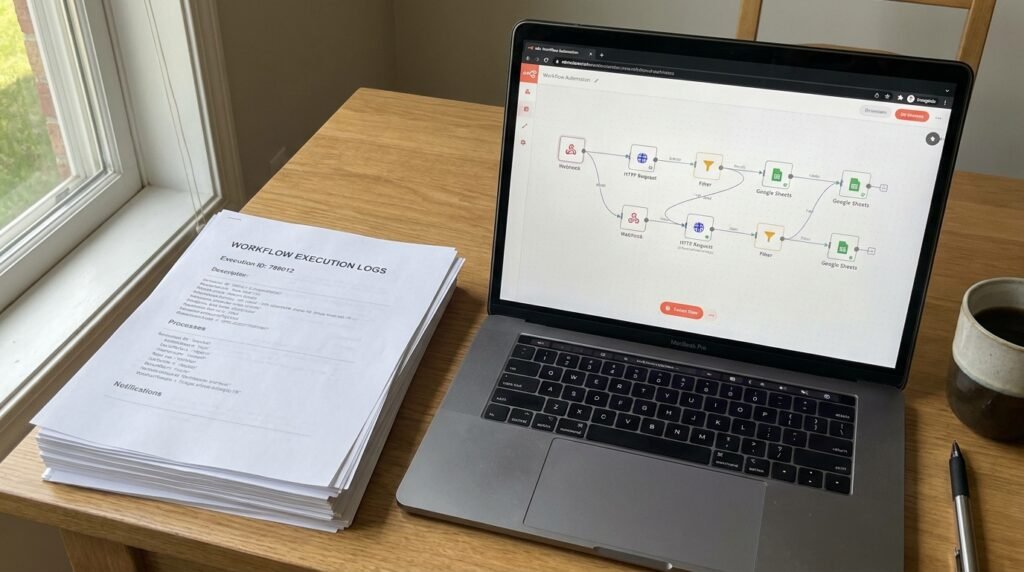
Start n8n workflow debugging with the symptom
Before changing a workflow, describe the problem in observable terms. “The workflow is broken” is too broad to guide an investigation. Instead, note whether it did not start, stopped partway through, completed but produced the wrong result, or ran more than once. The symptom narrows the likely cause and helps you avoid random edits.
Record when the issue began, which workflow is affected, and what should have happened. Include a specific example, such as an order that was not added to a spreadsheet or a notification sent with an empty name. If the workflow runs on a schedule or webhook, note whether other expected runs succeeded around the same time.
This first pass is the foundation of n8n workflow debugging: preserve evidence before you change anything. Avoid immediately activating and deactivating the workflow, deleting executions, or editing several nodes at once. Those actions can obscure the original condition, create duplicate work, or make it difficult to tell which change helped.
- Did it start? Check whether the expected trigger event arrived and whether the workflow was active.
- Where did it stop? Identify the last successful node and the first node marked as failed or skipped.
- What was the input? Compare the failing event with a recent successful event, removing personal or confidential data before sharing it.
- What changed? Consider recent edits, changed credentials, new fields, service outages, and permission changes.
Separate impact from cause. A failed run may affect one record, while a trigger problem may affect every event since a certain time. Check the destination before replaying anything: a notification or record may already have been created even if a later node failed. If the workflow handles payments, customer messages, or other sensitive actions, pause retries until you understand whether they could repeat an irreversible step.
Use a short incident note to keep the investigation organized: workflow name, approximate time, affected item, observed result, and last successful run. This simple record makes it easier to ask a teammate for help and to compare results after a repair. It also prevents the common trap of relying on memory while switching between the workflow editor and connected services.
Once you know the scope, open the relevant execution and inspect its path rather than rebuilding the automation from scratch. If the run succeeded but was unusually slow, treat that as a performance issue rather than a failure; these n8n workflow performance fixes can help you investigate that separate symptom.
Read workflow execution logs and trace the failing node
An execution is a record of one workflow run. It gives you a timeline and, depending on your n8n configuration and retention settings, details about what each node received and returned. Open the execution that matches your symptom, then follow the path from the trigger toward the point where the outcome diverged from what you expected.
In workflow execution logs, look for three things: the node that failed, the message associated with it, and the data entering that node. A red error marker often identifies the immediate stopping point, but the underlying cause may be earlier. For example, an API node can report that a required field is missing even though the field was lost in a previous transformation step.
- Choose the right run. Match its time and input to the affected event. Do not assume the newest execution is the relevant one.
- Follow the route. Note which nodes completed, which branches ran, and whether a condition sent the item down an unexpected path.
- Inspect incoming data. Check whether required fields are present, populated, and named as the next node expects.
- Read the full error. Record the status code, service message, node name, and any request identifier. A brief banner may omit useful context.
- Compare with a successful run. Look for one meaningful difference in input, permissions, response, or timing.
This is the practical heart of n8n workflow debugging: trace a value across the route instead of guessing what a node might have done. A field visible in the trigger does not automatically exist in every later node. A filter, merge, or data-editing node may change the item’s shape, and a branch may produce no item at all. Check the data at the point immediately before the failing operation.
Execution details can contain personal information, tokens, or business data. Share only the minimum useful excerpt, and redact secrets before sending screenshots or logs to a colleague. Do not paste credentials into a chat or a public support thread. Also remember that execution history may be limited by retention settings; when a run is no longer available, use a safe test event to reproduce the issue.
For exact interface details and current behavior, consult the official n8n documentation. Documentation is especially useful when a setting, node, or execution option looks different from a guide you found elsewhere. Record the message and node details before leaving the execution view so that your next step is based on evidence.
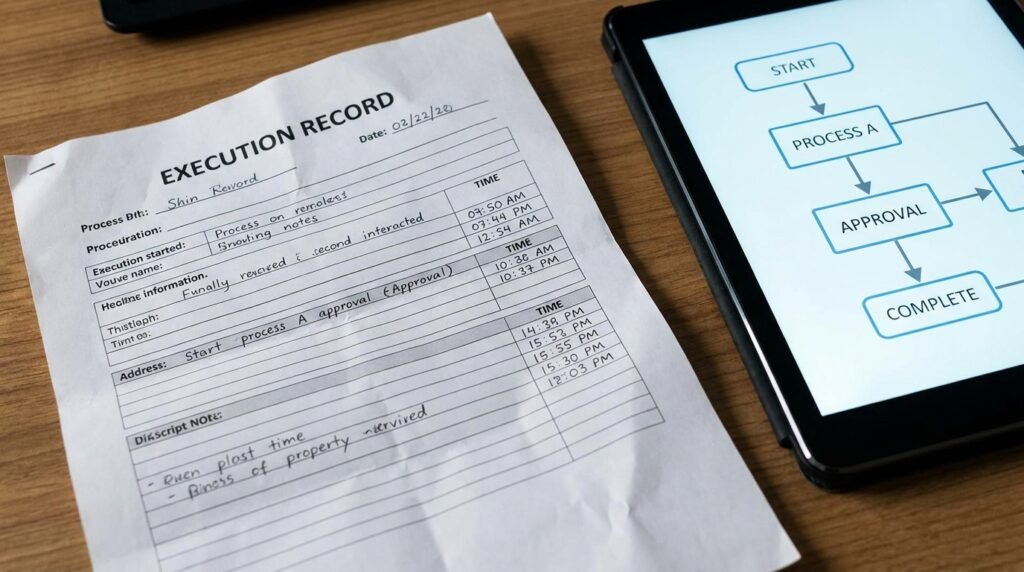
Match common error patterns to likely causes
Error messages are clues, not always a complete diagnosis. Read them alongside the node’s input, the action it attempted, and the response from the connected service. When you troubleshoot broken workflows, first decide which category fits best: access, data, service limits, connectivity, or workflow logic. That classification helps you choose a small, low-risk test instead of changing unrelated settings.
Authentication and permission errors
A message about an invalid credential, unauthorized request, or forbidden action usually points to expired credentials, a changed password, revoked access, or insufficient permissions. Confirm that the connection is still authorized and that it has access to the specific account, folder, project, or resource used by the workflow. Reconnect through n8n’s credential controls; never copy a secret into a node field just to make a test pass.
Missing or unexpected data
Messages about a required property, invalid value, or incorrect format often mean the service received a different data shape than expected. Check whether the field exists in the incoming item and whether it is empty, null, or differently named. Compare one failed item with a successful one. If a form, application, or upstream workflow recently changed, update the mapping deliberately and verify that downstream steps still receive the fields they need.
Rate limits and temporary service failures
A response such as “too many requests” suggests a rate limit; a server error or timeout may indicate temporary trouble at the connected service or along the network path. Check the response code and whether similar calls are failing. If the service documents a retry window, follow it. Repeatedly replaying a run can make rate limits worse, so use a measured retry and avoid sending duplicate actions while the service is unstable.
Timeouts and connection problems
A timeout can mean the remote service is slow, a request is too large, or connectivity between systems is interrupted. Determine whether the same operation succeeds with a smaller or safer test input. Check whether the service has a status page and whether other workflows using it are affected. If the issue happens only for large jobs, investigate processing time or payload size before changing a timeout setting.
Logic, branch, and duplicate-action errors
A workflow can finish without an error and still do the wrong thing. If an item was skipped, inspect conditions and branch paths; a value may have changed type or become blank. If an action happened twice, check for duplicate triggers, retries, and whether a prior attempt succeeded before a later node failed. A response that says “success” at one node does not guarantee that the full business process completed.
These categories are starting points, not automatic answers. Keep a note of the exact error and the evidence that supports your theory. If the message mentions an HTTP response, the MDN reference to HTTP status codes can clarify common response classes. Then test one likely cause at a time, preserving the original workflow until the fix is confirmed.
Reproduce the issue safely and test one change
A useful test recreates the failure without putting real customers, records, or money at risk. Start by identifying the smallest input that shows the problem. If the workflow receives a large batch, use one representative item. If the failing item contains private information, replace it with a sanitized example that preserves the relevant field names, blank values, and data types.
In n8n workflow debugging, isolate the step where expected behavior changes. Inspect the node immediately before the failure, then test the affected node with that input when the editor allows it. Do not alter the trigger, mapping, condition, and destination all at once. One change at a time lets you see whether the evidence supports your diagnosis.
- Write down the expected result. Be concrete: which field should be present, which branch should run, or what confirmation should return?
- Use a safe test record. Select an example that will not send a live message, create a payment, or overwrite important data.
- Check the boundary. Compare the data entering and leaving the suspected node. Look for missing properties, unexpected arrays, empty values, and differences in capitalization.
- Make one small edit. Change only the mapping, condition, credential, or setting indicated by the evidence.
- Run the test and verify the destination. Confirm both the n8n result and the real outcome in the connected service.
When an expression or field mapping is involved, use the editor’s available previews and confirm that the result matches the real input. A preview based on an old or pinned item may not reflect current production data. Be especially careful with dates, numbers, and values that look similar but have different formats. For example, a date displayed for a person may not match the format an API expects.
Before testing a live route, consider its side effects. A workflow that sends email, posts to a public channel, or writes to a customer record should use a test destination or a controlled sample whenever possible. If you cannot safely prevent a real action, ask an authorized teammate to review the plan before executing it. A successful test is not worth accidental outreach or duplicate data.
For a more formal approach to validating changes, use these n8n workflow testing strategies to plan repeatable test cases. Keep a record of the original behavior, your change, the test input, and the result. That makes it easier to reverse a change that does not work and gives another operator a clear handoff if the issue needs escalation.
If you cannot reproduce the issue, do not assume it has disappeared. Check whether the triggering event is intermittent, whether the connected service changed, and whether a particular input pattern is required. In that case, monitor the next relevant execution and collect its details rather than making a broad change based on a single uncertain clue.
Apply the fix, verify recovery, and prevent repeats
A fix is not complete when the red error disappears. Verify that the workflow now produces the intended result in the connected application, that no unexpected duplicate was created, and that downstream steps still work. A change to a field mapping, for example, may make one node pass while breaking a later notification that expects the previous format.
Make the smallest correction that addresses the confirmed cause. For expired access, renew the authorized connection. For changed data, update the relevant mapping or condition. For a service limit, follow its documented guidance and adjust how requests are paced if appropriate. Avoid broad rewrites while an incident is active; they increase the number of possible causes if a new problem appears.
Use a controlled verification sequence:
- Run a safe test with a representative input and confirm the relevant path completes.
- Check the real destination to ensure the expected record or action exists exactly once.
- Review the following nodes, not just the node you edited, for missing data or altered output.
- Observe the next normal trigger and inspect its execution before calling the issue resolved.
- Document the cause, repair, and any follow-up needed, such as renewing a connection on a schedule.
For problems that cannot be fully resolved immediately, protect the workflow from harmful repeated attempts. Depending on the situation, that may mean pausing a workflow, notifying an owner, or routing failed items for review. Choose the option that best protects the data and business process. Do not enable automatic retries without considering whether the action is safe to repeat.
Use version history or a saved copy before making a risky edit, particularly for a workflow that handles important operations. A clear recovery path reduces pressure during an incident. If a change introduces a new issue, restore the known-good version and investigate the attempted fix separately. See this guide to n8n workflow versioning and safe rollback for ways to make reversals more orderly.
After recovery, look for a prevention step that fits the cause. A field that sometimes arrives empty may need a clear validation route. An external service that occasionally limits requests may need controlled handling. An expiring credential may need an owner and renewal reminder. The goal is not to add complexity to every workflow; it is to make the known failure visible and manageable.
Good n8n workflow debugging ends with a short learning loop: record what failed, identify the signal that would have revealed it sooner, and decide who should respond next time. Monitor only what is useful, keep alerts actionable, and avoid exposing sensitive execution data in notifications. A small, understandable safeguard is often more valuable than a complicated set of rules nobody remembers to maintain.
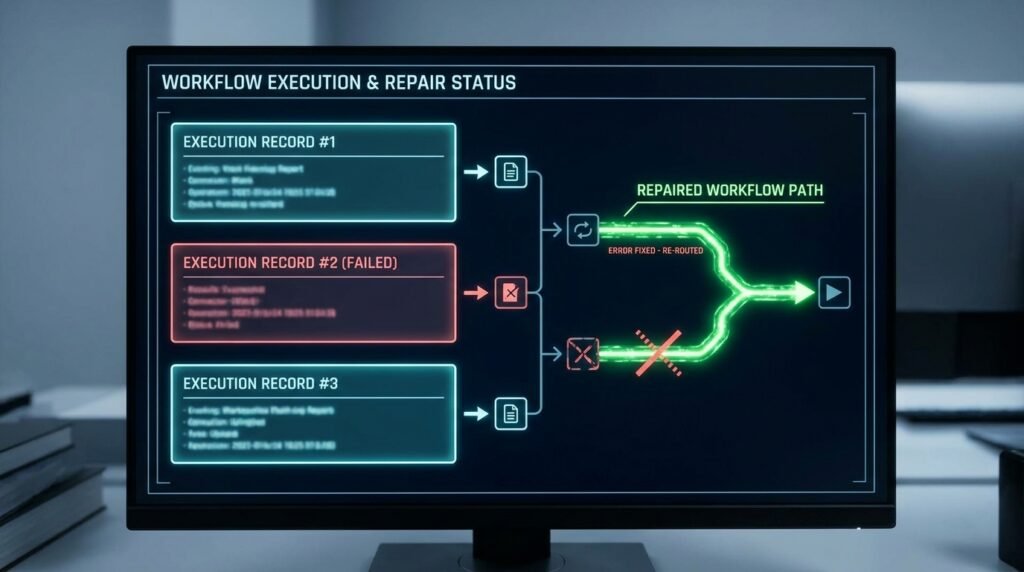
FAQ: n8n workflow debugging questions
These answers cover common questions from operators who need to diagnose a workflow without being developers. Start with the execution and the business outcome, then use the smallest safe test that can confirm a cause.
What should I check first when a workflow fails?
Open the execution that matches the affected event. Check when it ran, the last successful node, the first failed or unexpected node, and the data passed into that step. Compare the result with what you expected. Before replaying the workflow, check the destination to make sure an earlier action did not already succeed.
Can I troubleshoot broken workflows without knowing code?
Yes. Many issues can be investigated by following the node path, reading the error, and checking whether expected fields are present. You may need technical help for complex expressions, infrastructure, or unclear service responses, but a careful operator can gather the workflow name, execution time, error text, and safe example needed for a useful handoff.
Why does a workflow succeed when I test it but fail later?
A manual test may use different input, credentials, timing, or execution conditions from a normal trigger. The tested item may also be pinned or out of date. Compare a live execution with the test data and confirm that the workflow is active and using the expected connection. Test the range of realistic input values, not just one ideal example.
Should I retry a failed execution?
Retry only after checking whether the previous attempt completed any side effects. If it created a record or sent a message before failing later, a full replay could duplicate that action. For safe, repeatable tasks, a retry may be appropriate. If the effect is uncertain or irreversible, pause and verify the destination or ask an owner to review the run.
How can I share an execution with a teammate safely?
Share the workflow name, approximate time, failing node, exact error, and only the data needed to understand the issue. Remove credentials, tokens, personal details, and confidential values from screenshots or copied logs. If the problem is intermittent, include a successful comparison and note what was different. Keep the original execution available until the investigation is complete.
When should I escalate the issue?
Escalate when you cannot explain the failure from the available evidence, when an important process is affected, or when a proposed fix could create a security, data, or financial risk. Provide your incident notes and tests already performed. For n8n workflow debugging, a concise, evidence-based handoff is more useful than a list of speculative changes.
Conclusion: make n8n workflow debugging repeatable
Reliable n8n workflow debugging follows a simple sequence: describe the symptom, open the matching execution, trace the data to the point of failure, test one safe change, and verify the real outcome. This approach helps non-technical operators troubleshoot broken workflows without guessing or creating unnecessary risk.
Keep execution evidence private, check for duplicate side effects before retrying, and document the fix so the next investigation starts faster. If your team needs help designing safer automations or improving how workflows are monitored, contact Seelaunch to discuss a practical next step.